# Technical support blog by FastPrinters.com supporting printing and imaging products by AMTDatasouth, Dell, Genicom, HP, Lexmark, Okidata and Tally

Latest Publications

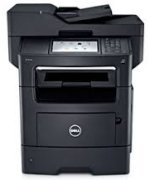
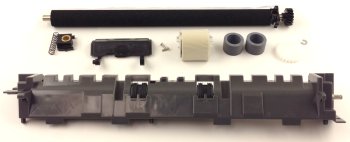
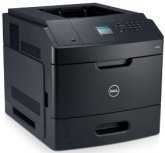
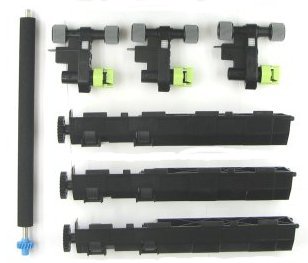
Installing the Dell 5230n 5350dn 5530dn 5535dn fuser maintenance kit CKP5W.

Instructions on how to install the fuser, maintenance kit, transfer roller charge roller and pick tires in the Dell 5230n 5350dn 5530dn 5535dn.  This kit and procedure will resolve the 80 scheduled maintenance message.  This covers parts CKP5W, P0K6X, DELL-5230-MK, DELL-5350-MK, DELL-5530-MK, DELL-5535-MK Y47TY, T7H27, QSP-AKP5104, J4TGM.  Order these parts online at FastPrinters.com

Installing the Dell 2335dn fuser maintenance kit, adf pickup and separation pad.

Video instructions on how to install the fuser, maintenance kit, transfer roller
adf pickup and separation pad in the Dell 2335dn multifunction printer.

These parts will remedy error conditions: fuser error, low heat error, paper jam 1.
This covers parts KW449, KW449-MK, KW455 and KW462.

Order Dell fusers, maintenance kit and rollers here.
Dell 2335dn

My toner cartridge is leaking… but the cartridge may not be the cause.

I get this question frequently from owners of Lexmark T series printers. (T620, T630, T640 and T650 series – all types.) The most common problem with a leaking cartridge is the waste bin of the  cartridge has become full and will begin to dribble out onto the paper and all over the inside of the printer.

Let’s take a quick look at the printing process.  Here is a simple explanation on laser printing.  Open up your printer and pull out the toner cartridge and look in the top for the charge roller and the bottom for the transfer roller.  Basically the toner is moved from the “hopper” to the drum and then to the paper.

We can break the printing process down into 4 steps: Charge, exposure, transfer & cleaning.
First there is the charge. In this step the drum is electrostatically ‘erased’

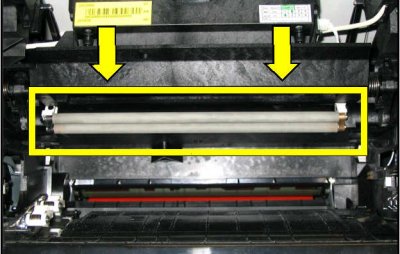
Charge roller is visible when the toner cartridge is removed and drops down from above the cartridge.

Charge roller is visible when the toner cartridge is removed and drops down from above the cartridge.

by the charge roller while it rides right on the drum.  Once it’s fully erased it can be exposed.

The drum is exposed by the laser beam drawing an image on the drum.
Quite simply, wherever the laser hits the drum, toner is attracted to that spot. The drum continues to revolve as it’s passed close to the paper.

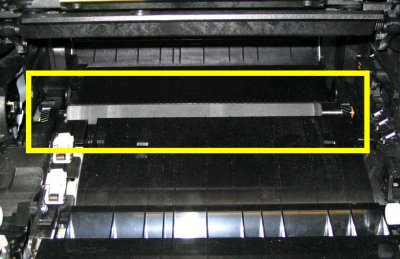
Lexmark T series transfer roller

The transfer roller sits below the toner cartridge

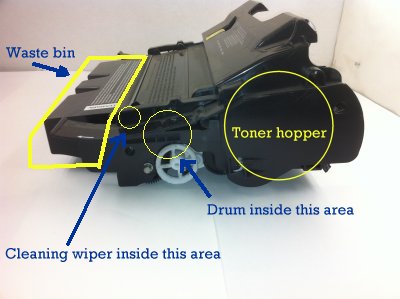
Once near the paper, the third step occurs: transfer. Toner is transferred from the drum to the paper. The transfer roller sits under the paper with a strong opposing electrical charge and pulls the toner from the drum and onto the paper. The drum continues its revolution and is cleaned internally by a wiper and any excess toner is wiped off and deposited into the waste bin.

Now, here is where the problem occurs. When the transfer roller gets worn out, less toner makes its way on to the paper and toner left on the drum is cleaned off. The result is that more toner is going into the waste bin during the cleaning wipe.

Lexmark T series cartridge

Diagram of Lexmark T series cartridge parts

Why does the waste bin become full?  Well, there is a limited amount of space in the waste bin and once this bin is full, it has no other place to go and begins to dribble out.  When a transfer roller is new your prints will be very dark, crisp and will transfer nearly 100% of the toner from the drum to the paper. Over time the roller will wear out and less toner will get transferred to the paper and will be wiped off the drum with each revolution and end up in the waste bin.  One solution is to keep your transfer roller fresh. If you see lighter copies, change the transfer roller right away. Try switching from the extra high yield cartridge to a lower yield cartridge.  Here is an example: If you are using a 32,000 page extra high yield cartridge the waste bin on this cartridge is exactly the same as one found on a 21,000 page cartridge. More prints means more waste so you may be more likely to fill the waste bin inside a 32K if your transfer roller is only transferring 70%-80% than with a 21K.

You can order roller kits for your Lexmark T series printers here
Maintenance kits contain the transfer roller and can be ordered here

by:  Thomas Braeger

Replacing the fuser maintenance kit and rollers in the HP LJ P4014 P4015 P4515 series printers

How to install the fuser and rollers in the HP LaserJet P4014, P4015, P4515
printers.
This covers the following parts: Maintenance kit CB388A, Fuser
CB506-67901, transfer roller CB506-67903, tray 1 pickup roller RL1-1641, Tray
1 separation roller RL1-1654, tray 2 pickup roller rm1-0036, tray 2 separation
roller rm1-0037 Multipurpose kit cb506-67905  tray 2 kit cb506-67904

Order HP Kits here.

HP P4014 P4015 P4515

HP P4014 P4015 P4515 Series Printers

Installing the fuser maintenance kit and rollers in the Dell 5330dn

Video installation instructions on how to install the fuser kit in the Dell 5330dn series printers.
This covers parts HW679 HW679-MK
Order Dell Kits here.

Dell 5330dn

Dell 5330dn


On occasion the printer will not automatically reset the fuser counter. You can also reset the fuser counter as follows:
Dell 5330dn Fuser Count Reset

1. Check printer is powered on.
2. Wait until the printer becomes a ready mode.
3. Press Menu -> Up -> Left -> Ok -> Right ->Cancel ->Menu

Then this will appear
Tech menu
User Menu

4. Select the Tech Menu,
5. Down arrow to Data Setup press check
6. Down arror to Clear Fuser Count and press check

Power on and off the printer after you Clear Fuser count.
Print a configuration from the reports menu to verify the fuser count 0.

Note:
You need to press keys in a quick sequence. If you are too slow it
won’t work.  Don’t look at the display – just hit the keys.
Menu -> Up -> Left -> Ok -> Right ->Cancel ->Menu

Then this will appear
Tech menu
User Menu

Installing the fuser maintenance kit and rollers in the Dell 1815dn

Video installation instructions on how to install the fuser kit in the Dell 1815dn  series printers.
This covers parts UG297 UG594 WJ045 UG297-MK

Order Dell Kits here.

Dell 1815dn

Dell 1815dn

Installing the fuser maintenance kit and rollers in the Dell 2330dn 2350dn

Video installation Instructions on how to install the fuser kit in the Dell 2330 2350  series printers.
This covers parts N821D N821D-MK

Step by step installation instructions on how to install the fuser maintenance kit in the Dell 2330 and 2350

Order Dell kits here.

Dell 2330dn 2350dn

Dell 2330dn 2350dn

Installing the Dell 1320c 2135cn fuser maintenance kit and rollers.

Instructions on how to install the fuser and rollers in the Dell 1320c and 2135cn series printers.
Instructions on how to install the fuser and rollers
in the Dell 1320c and 2135cn series printers.
This Covers parts: WY561 WY561-MK

Order Dell kits online here.

Dell 1320c 2135cn

Dell 1320c 2135cn


Installing the Dell 3110cn 3115cn fuser maintenance kit and rollers.

Instructions on how to install the fuser and rollers in the Dell 3110cn and 3115cn mfp series printers.
This video shows step by step instructions on how to install the fusers and rollers in the Dell Color printer and Multifunction 3110cn and 3115cn models.  This covers parts UG190 FG627 UG190-FO NG884 RG399
Order Dell fuser and maintenance kits online.

Dell 3110cn and 3115cn MFP

Dell 3110cn and 3115cn MFP

Installing the fuser in the Lexmark C770 C772 C780 C782 X772e X782e MFP

Video Instructions on how to install the fuser kit and reset the message 80 Fuser
Maintenance warning
in the Lexmark C770 and C780 series printers.
Order all your Lexmark printers, parts and supplies online.

http://www.fastprinters.com

This covers parts 40×1831 40X1651 40X1859

Lexmark C770 C780

Lexmark C780